 Click on one of these, such as "Heading 1" and type a few words. You will notice that they are big and bold and sans-serif, as shown on the menu. Press Enter, and type some more. This should now be in normal writing again.
| Word Processing | What Microsoft Word Can Do |
Before reading this, make sure that you know about general word processing topics and getting started with Word. This page covers more advanced topics.
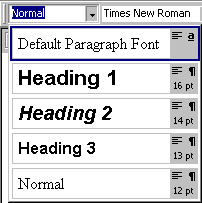
Near the top left you will probably see the word "Normal". Click on the arrow beside it and you will see the following menu:
Click on one of these, such as "Heading 1" and type a few words. You will notice that they are big and bold and sans-serif, as shown on the menu. Press Enter, and type some more. This should now be in normal writing again.
You may not think that this achieves anything you cannot do just by changing the font attributes. The difference is, you can now easily change the appearance of all of your headings. The way to do this is:
 "
"You will notice that the writing that you made into Heading 1 has changed.
The point is, if you have started writing a document and aren't quite sure about what you want the headings to look like, you can change them later.
You can define your own styles as well. Click on "Format", then "Style...", then "New..." You can change the style in the same way as you changed Heading 1. The style for the following paragraph is useful mainly for headings, and it means that when you press Enter it changes the style to the one specified. Change the style type to Character if you want it used for a piece of text within a paragraph, leave it as it is if you want it to apply to a whole paragraph, title, list or whatever.
There is another thing that styles can be useful for, in particular headings. If you have a long document and you define the headings using styles, you can view the outline of the document by clicking on "View" then "Document Map". A list of all the headings will appear on the left of the window. This is very useful for finding something in a long document.
At some point you will almost certainly want to put a picture into your document. This can be done by clicking on "Insert", "Picture", "From File...". You will see a window which should be familiar to you, showing the available pictures and folders on your computer. Find the one you want, click on it, then click on Insert. It will appear in your document.
Try typing some text around the picture. Does it do what you expect? If not, look for the picture toolbar, which should look like this (possibly on its side):
 If you cannot see it, click on "View", "Toolbars" then "Picture". The button you want is the one with some sort of animal on it, and grey lines in the background. Click on this, and see what the various options do.
How to draw shapes (such as ellipses, rectangles, and WordArt) is covered in what Office programs can do since most Office programs deal with shapes in the same way.
See also Microsoft Office, since Word is an office product.
 Go back to word processing index page